Your 3D pen turns on, the light glows, but no filament comes out. This is one of the most frustrating problems 3D pen users run into. It almost always comes down to three things: the wrong filament temperature, a clogged nozzle, or a weak power source. These 3D printing pen problems look scary at first, but most have a quick, simple fix.
This guide will systematically explain the common reasons for the 3D printing pen to heat up but fail to function properly. It will teach you how to check the type of filament, clean the clogged nozzle, repair the stuck feeding gear, and troubleshoot power issues. Whether you are using a rechargeable low-temperature 3D printing pen for classroom projects or a wired model for prototyping, these solutions are applicable to most brands.
If your 3D pen is heating normally but no filament comes out, the issue is usually related to a clogged nozzle, incorrect temperature settings, filament feeding problems, an internal jam, or a power or temperature sensor fault. The diagram below provides a quick overview of the most common causes and possible fixes.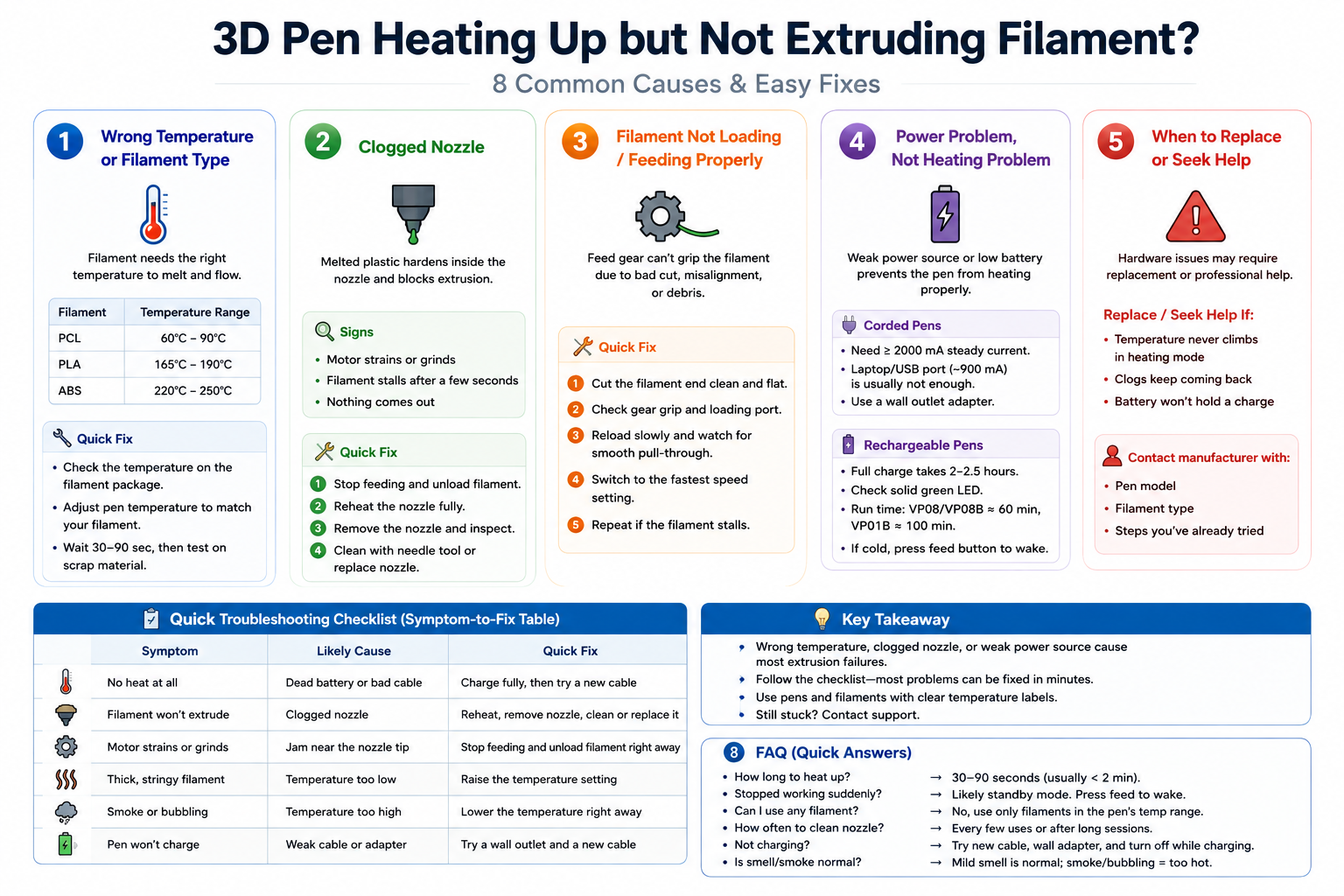
Wrong filament temperature is the number one cause of extrusion failure in 3D pens.
Clogged nozzles cause roughly 40% to 50% of "heats but won't extrude" cases.
Weak power sources, like laptop USB ports, often mimic a full heating failure.
Standby or sleep mode can make a perfectly working pen look broken.
A short checklist near the end of this guide can solve most issues in under 10 minutes.

A 3D printing pen that heats up but won't extrude filament almost always has a temperature mismatch. Each filament type needs a specific melting range to flow smoothly through the nozzle. PCL filament works best between 60°C and 90°C, PLA needs around 165°C to 190°C, and ABS runs hotter at 220°C to 250°C. Loading the wrong filament for the pen's heat setting is one of the leading causes of extrusion failure, and it explains a large share of these complaints from new users.
Different filaments melt at different temperatures because of their chemical makeup. If you load PLA into a pen set for low-temperature PCL, the plastic stays too stiff to push through. The reverse also happens, since PCL turns runny and drippy inside a high-heat pen. Sundi3D labels its PCL (60°C to 90°C) and PLA (180°C to 210°C) filaments clearly, so you can match filament to pen before you start.
Start by checking the temperature range printed on your filament packaging. If you see smoke or bubbling as filament comes out, the heat is set too high. If the filament looks thick, slow, or stringy, the pen is running too cool. These visual clues point you straight to the right fix.
Turn the pen off and adjust the temperature dial to match your filament. Wait 30 to 90 seconds, then try extruding on scrap material. Pens with a display, like the VM01 or VP01H, help confirm the exact temperature first. Watch the reading climb to the right range before you continue.

A clogged nozzle is the next most likely reason filament won't come out, even when the pen feels hot. Small bits of melted plastic can harden inside the nozzle path over time. This blockage stops new filament from pushing through, even at the right temperature. Clogged nozzles cause roughly 40% to 50% of these extrusion failures. Jams usually form near the nozzle tip, not the feed gear.
You can usually tell a clog is forming before the pen fully stops:
The motor may strain, slow down, or make a grinding noise
Filament often stalls just a few seconds after feeding starts
Nothing comes out despite correct temperature
Stop feeding filament the moment you notice strain or grinding. Continuing to push can damage the motor or feed gears.
Unload the filament fully before doing anything else. If your pen has a reverse or retract button, use it now to pull the strand back.
Reheat the nozzle fully so any residue softens.
Gently remove the nozzle and look inside for hardened bits.
Clean it out with a small needle tool, or swap in a new nozzle if residue remains.
Most clogs clear in under 5 minutes with this method.
Sometimes the pen heats correctly, but the filament never loads into the feed path in the first place. This happens when the feed gear can't grip the filament strand properly. A rough or angled cut on the filament tip often causes this snag. It's an easy problem to miss, but also one of the simplest to fix.
Snip a clean, flat cut on the filament end before loading it. A jagged tip often slips past the feed gear teeth.
Open the loading port and check that the gear grips the strand firmly. You should see the teeth bite into the plastic as it feeds.
Reload the filament slowly and watch for smooth, steady pull-through.
If the feed still feels sluggish, switch to the fastest speed setting. This extra push often clears minor resistance.
Repeat the process if the filament stalls partway through again.
Sometimes what looks like a heating failure is really a power problem. Corded, high-temperature pens need a steady, strong current to reach and hold their target temperature. Rechargeable pens need a full charge, which usually takes 2 to 2.5 hours, before they heat properly. A weak power source can make a perfectly healthy pen seem broken.
Corded, high-temperature pens usually need at least 2000 mA of steady current. A laptop or Chromebook USB port often supplies only about 900 mA. That simply isn't enough to heat the pen properly. Try plugging into a wall outlet adapter instead of a computer port.
For rechargeable pens, check that the LED shows a full charge, often a solid green light. The VP08 and VP08B run about 60 minutes per charge, while the VP01B offers around 100 minutes cordless. If your pen suddenly feels cold, it may have entered standby mode. Press the feed button once to wake it back up.

Before you reach out for support, run through this quick checklist. It brings together every fix covered above into one scannable table. Match your symptom to the likely cause, then try the suggested fix. Most users solve their problem within a few minutes this way.
Here is a fast reference for the most common symptoms and their fixes.
|
Symptom |
Likely Cause |
Quick Fix |
|---|---|---|
|
No heat at all |
Dead battery or bad cable |
Charge fully, then try a new cable |
|
Filament won't extrude |
Clogged nozzle |
Reheat, remove nozzle, clean or replace it |
|
Motor strains or grinds |
Jam near the nozzle tip |
Stop feeding and unload filament right away |
|
Thick, stringy filament |
Temperature too low |
Raise the temperature setting |
|
Smoke or bubbling |
Temperature too high |
Lower the temperature right away |
|
Pen won't charge |
Weak cable or adapter |
Try a wall outlet and a new cable |
Sometimes troubleshooting isn't enough, and the problem points to a hardware fault. If the temperature display never rises despite the heating mode starting, the heating element itself may be damaged. Repeated clogs, even after cleaning and using the correct filament, also suggest a deeper mechanical issue. At this point, replacement or professional repair is the better path.
Watch for a few clear warning signs:
The temperature reading never climbs, even in heating mode
Clogs keep coming back no matter how often you clean the nozzle
The battery won't hold a charge after several charge cycles
When these signs appear, contact the manufacturer with your pen model, filament type, and the steps you've already tried. Sundi3D is available 24/7 to provide after-sales support and practical solutions, helping you troubleshoot the issue and find the right fix. Having this information ready speeds up the whole support process. A quick message can often save you days of frustration.
Tip: Keep your pen model number and filament type handy before contacting support. It cuts down on back-and-forth and gets you a fix faster.
Most 3D pens that heat up but won't work share the same few causes. Wrong filament temperature, a clogged nozzle, or a weak power source explain nearly every case. Working through the checklist above resolves the vast majority of these problems quickly. You rarely need special tools or technical skills to fix them.
Choosing a pen and filament with clear temperature labels prevents many of these headaches from the start. A well-made rechargeable pen with labeled PCL and PLA filaments makes matching temperature simple. If a problem still won't go away after trying these steps, reach out to the manufacturer's support team. A little patience and the right checklist go a long way.
Here are quick answers to common questions about 3D pen heating and extrusion problems.
Question: How long should a 3D pen take to heat up?
Most 3D pens reach working temperature in 30 to 90 seconds. Ambient temperature and pen model can affect this slightly. If your pen takes much longer than 2 minutes, the heating element may have a fault worth checking.
Question: Why did my 3D pen suddenly stop working after it was fine earlier?
This is often standby or sleep mode, not a real failure. Many pens cool down automatically after sitting idle for a few minutes to prevent burns. Press the feed button once to wake the pen and restart heating.
Question: Can I use any filament in a low-temperature 3D pen?
No, only filaments rated for that pen's specific temperature range work well. Loading standard high-temperature PLA into a low-temperature pen often causes extrusion failure. Always check the filament packaging before loading a new type.
Question: How often should I clean my 3D pen's nozzle?
Clean the nozzle every few uses, or after any extended printing session. Regular cleaning prevents leftover residue from building up and causing clogs. A quick wipe with a needle tool usually takes less than a minute.
Question: Why is my rechargeable 3D pen not charging?
First, check the LED indicator to confirm the charging status. Try a different USB cable or a wall adapter instead of a laptop port. Also confirm the pen is fully powered off while it charges.
Question: Is it normal for a 3D pen to smell or smoke slightly?
A mild plastic smell while melting filament is normal and expected. Visible smoke or bubbling, however, means the temperature is set too high. Lower the setting right away if you notice either sign.